Managing Services
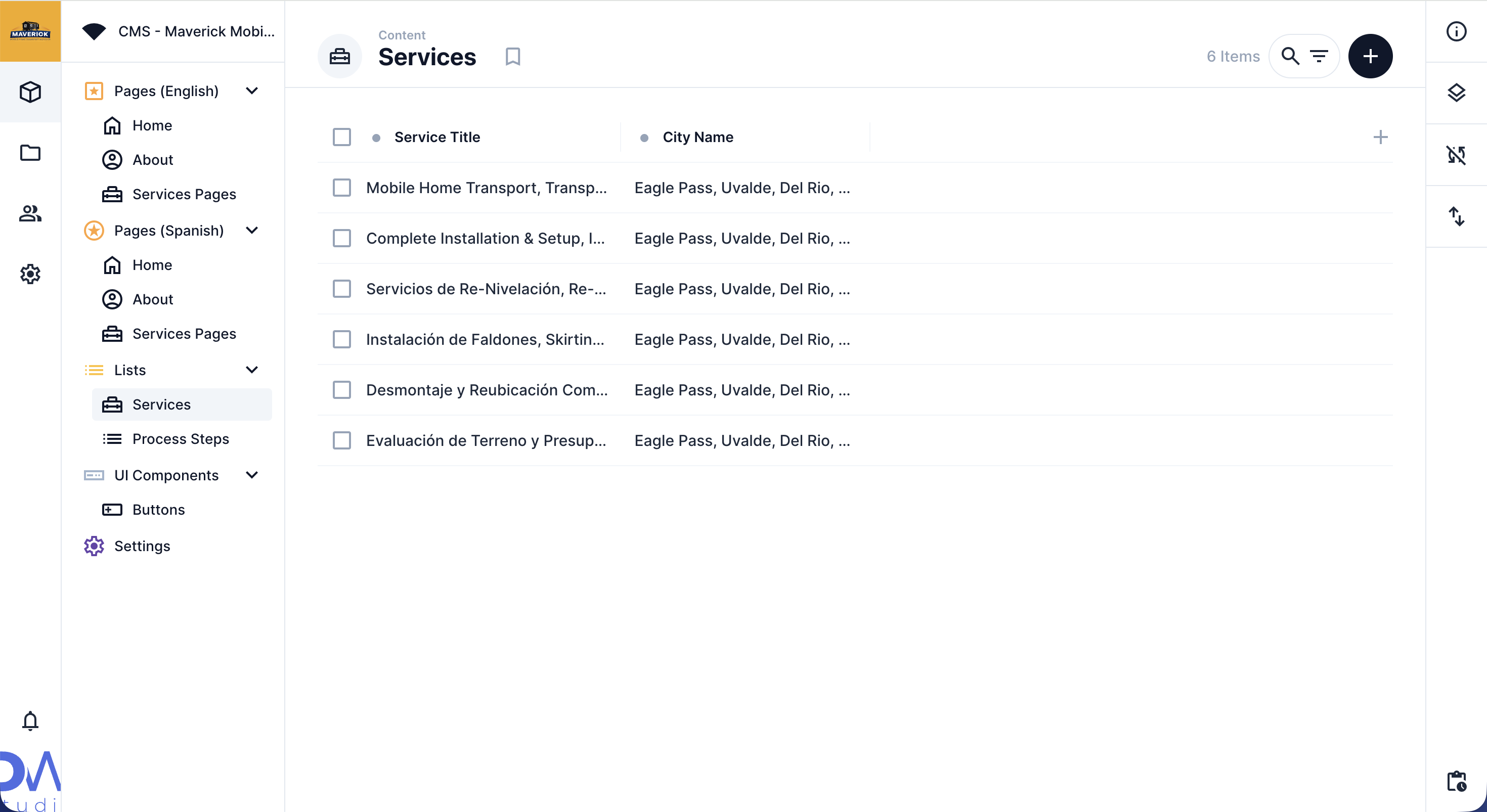
The services collection contains all the services your company offers. These appear on the home page and on every city services page. Changing a service here updates it everywhere at once.
Where to Find It
Section titled “Where to Find It”- Log in to Directus.
- Click Content in the left sidebar.
- Click services.
- You’ll see a list of all your services. Click one to open it.
Field Reference
Section titled “Field Reference”| Field | What it does |
|---|---|
| Service Icon | The icon displayed next to the service name |
| Service Image | The image shown on the service card |
| Action Button | The “Learn more” button for this service |
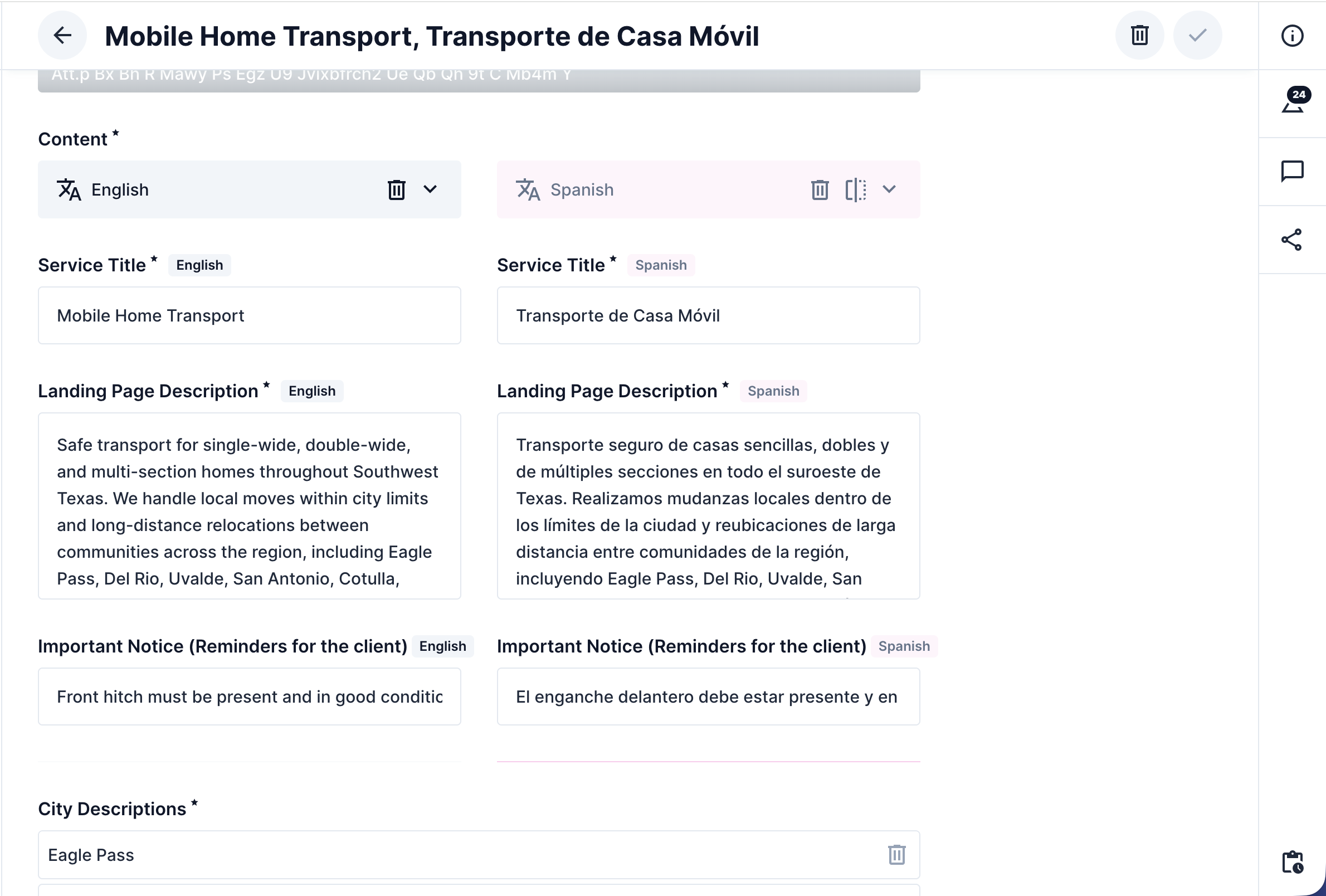
translations → Service Title | The service name (in English or Spanish) |
translations → Landing Page Description | The description shown on the home page service cards |
translations → Important Notice | A highlighted notice shown on city service pages (optional) |
Step-by-Step: Editing a Service
Section titled “Step-by-Step: Editing a Service”- Click Content → services.
- Click the service you want to edit.
- Scroll to the Translations section.
- Click the English tab.
- Update the Service Title field with the service name.
- Update the Landing Page Description field with the description shown on the home page.
- Update the Important Notice field if there’s a special note for this service (see below).
- Click the Spanish tab and repeat for the Spanish version.
- Click Save.
The Important Notice Field
Section titled “The Important Notice Field”The Important Notice field is an optional highlighted message that appears on city service pages, for example, a warning, a pricing note, or a seasonal availability message.
If you leave this field empty, no notice will appear; that’s fine.
Changing a Service Image
Section titled “Changing a Service Image”- Open the service in the services collection.
- Click the Service Image field.
- Click Upload a File and choose a new photo.
- Click Save.
Important: Changes Affect All City Pages
Section titled “Important: Changes Affect All City Pages”Adding a New Service
Section titled “Adding a New Service”Contact your developer to add a new service. They’ll need to:
- Set up the icon
- Create the entry in
services - Connect it to the relevant pages