Contact Info & Hours
This page controls your contact information, logo, and business hours, things that appear in the header and footer of every page on your website. If your phone number changes, this is where you update it.
Where to Find It
Section titled “Where to Find It”- Log in to Directus.
- Click Content in the left sidebar.
- Click settings.
- The settings item opens directly (there is only one, no list to choose from).
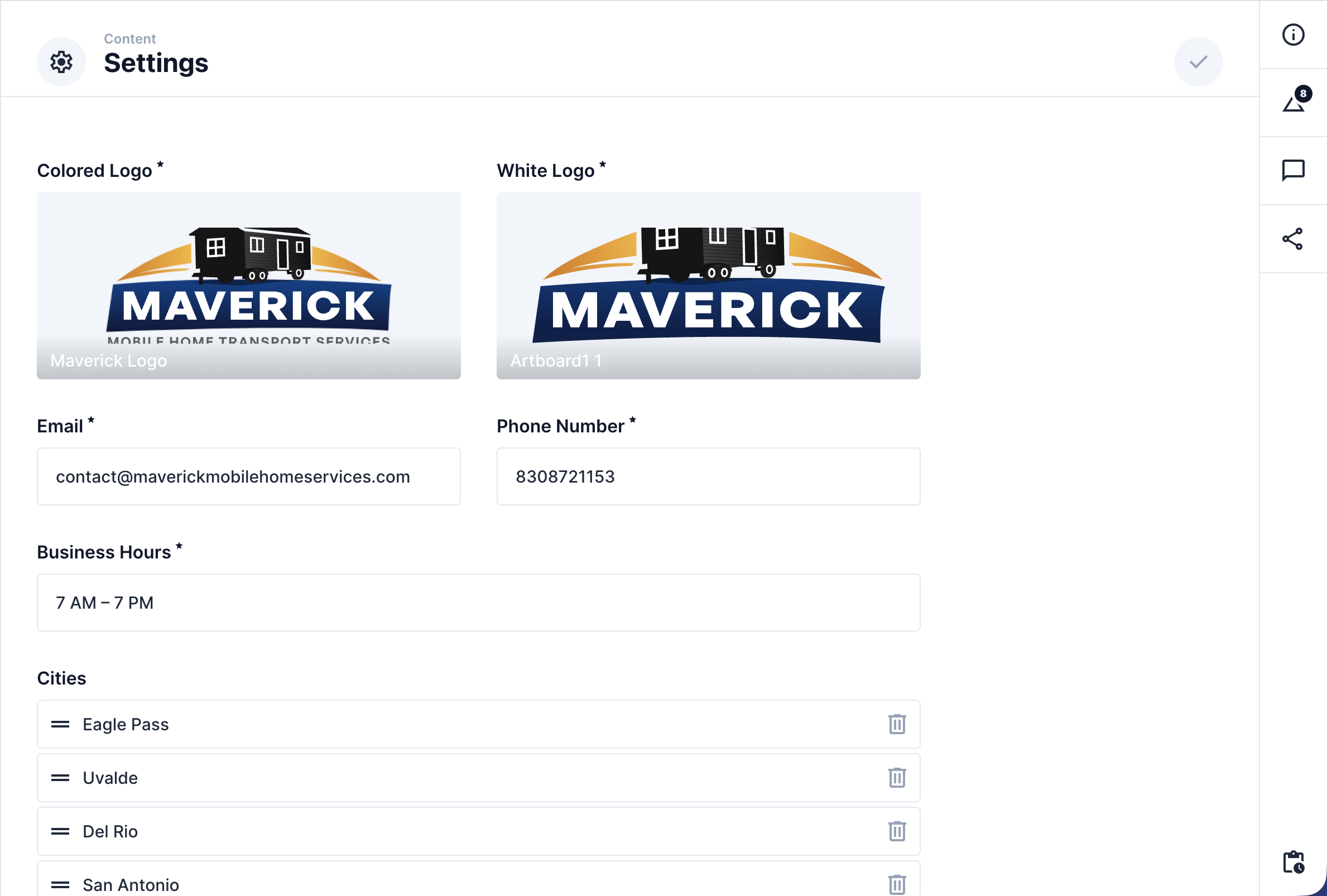
Step-by-Step: Updating Contact Info
Section titled “Step-by-Step: Updating Contact Info”- Click the Phone Number field and type your new phone number.
- Click the Email field and type your new email address.
- Click the Business Hours field and type your current hours (e.g.,
Mon–Fri: 8am–6pm, Sat: 9am–3pm). - Click Save in the top right corner.
Field Reference
Section titled “Field Reference”| Field | What it does |
|---|---|
| Colored Logo | The logo that appears in the website header. Upload a new image here to change it. |
| White Logo | The white version of your logo shown in the footer. |
| OG Image | The image that appears when someone shares your website link on Facebook, WhatsApp, or other social media. |
| Your contact email address, shown in the footer. | |
| Phone Number | Your phone number, shown in the footer and contact areas. |
| Business Hours | Your hours of operation, shown in the footer. |
| Social Media Links | Your social media links. See Social Media Links. |
| Cities | The list of cities you serve. See the section below. |
Updating Your Logo
Section titled “Updating Your Logo”- Click the Colored Logo field.
- Click Upload a File (or drag and drop your new logo image onto the field).
- Wait for the upload to complete.
- Repeat for White Logo if you also want to update the footer version.
- Click Save.
Managing Service Cities
Section titled “Managing Service Cities”The Cities field lists every city that appears in your navigation and services pages.
To update a city name (the display name only, not the slug):
- Click the Cities field.
- Click the city entry you want to update.
- Edit the name.
- Click Save.