Footer Text
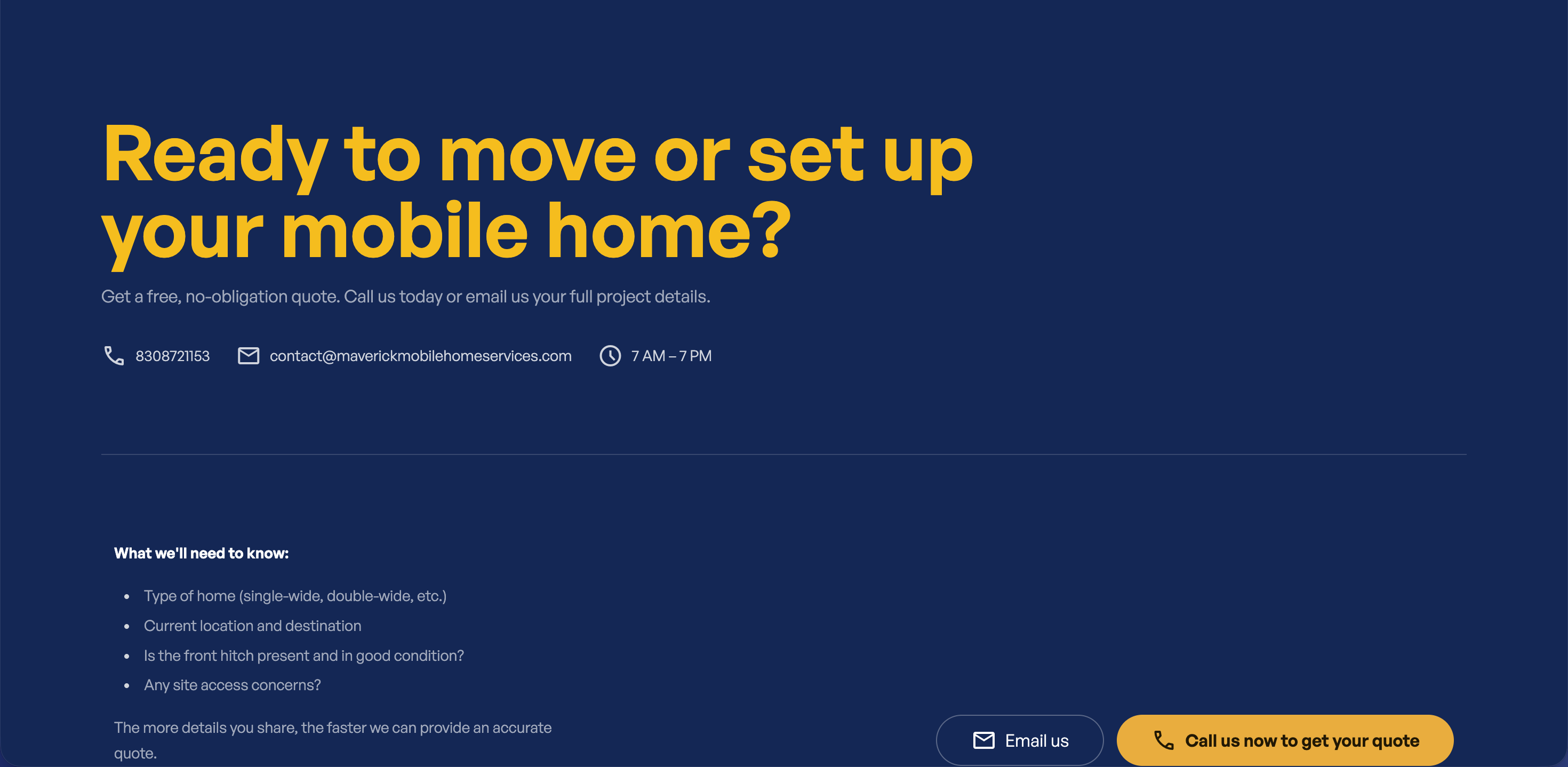
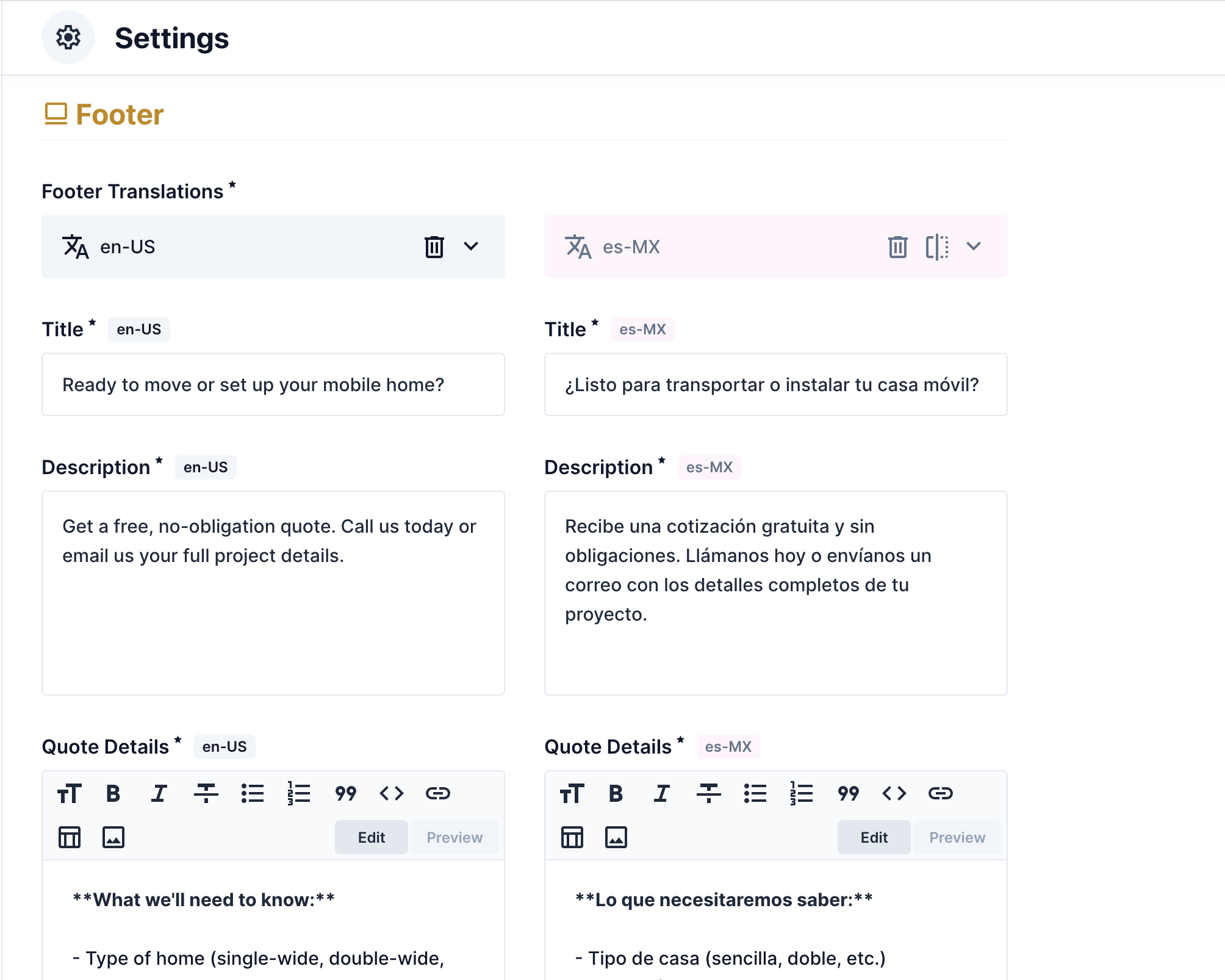
The footer of your website has three text areas: a heading, an intro sentence, and quote details. All three can be updated in both English and Spanish.
Where to Find It
Section titled “Where to Find It”- Log in to Directus.
- Click Content in the left sidebar.
- Click settings.
- Scroll down to the Translations section.
- Click the English tab to edit English text, or the Spanish tab for Spanish.
Field Reference
Section titled “Field Reference”| Field | What it does |
|---|---|
| Title | The bold heading at the top of the footer (e.g., “Let’s get started”) |
| Description | The intro sentence below the heading |
| Quote Details | The details a customer needs to provide before asking for a quote at the bottom of the footer. Supports markdown formatting |
Step-by-Step: Updating Footer Text
Section titled “Step-by-Step: Updating Footer Text”- Open the settings collection.
- Scroll down to the Translations section and click the English tab.
- Click the Title field and type your new heading.
- Click the Description field and update the intro sentence.
- Click the Quote Details field and update the closing message.
- Click the Spanish tab and repeat the same steps for the Spanish version.
- Click Save when done.
Formatting the Closing Quote
Section titled “Formatting the Closing Quote”The Quote Details field supports markdown, a simple way to add formatting to text.
| To do this… | Type this… |
|---|---|
| Bold text | **your text here** |
| Italic text | *your text here* |
| New paragraph | Leave a blank line between paragraphs |
For the full formatting reference, see the Formatting Guide.