Services Section
The services section appears below the hero on your home page. It introduces your list of services with a heading, a description, and a call-to-action button. The service cards themselves (names, descriptions, icons) are managed in the services collection; see Managing Services.
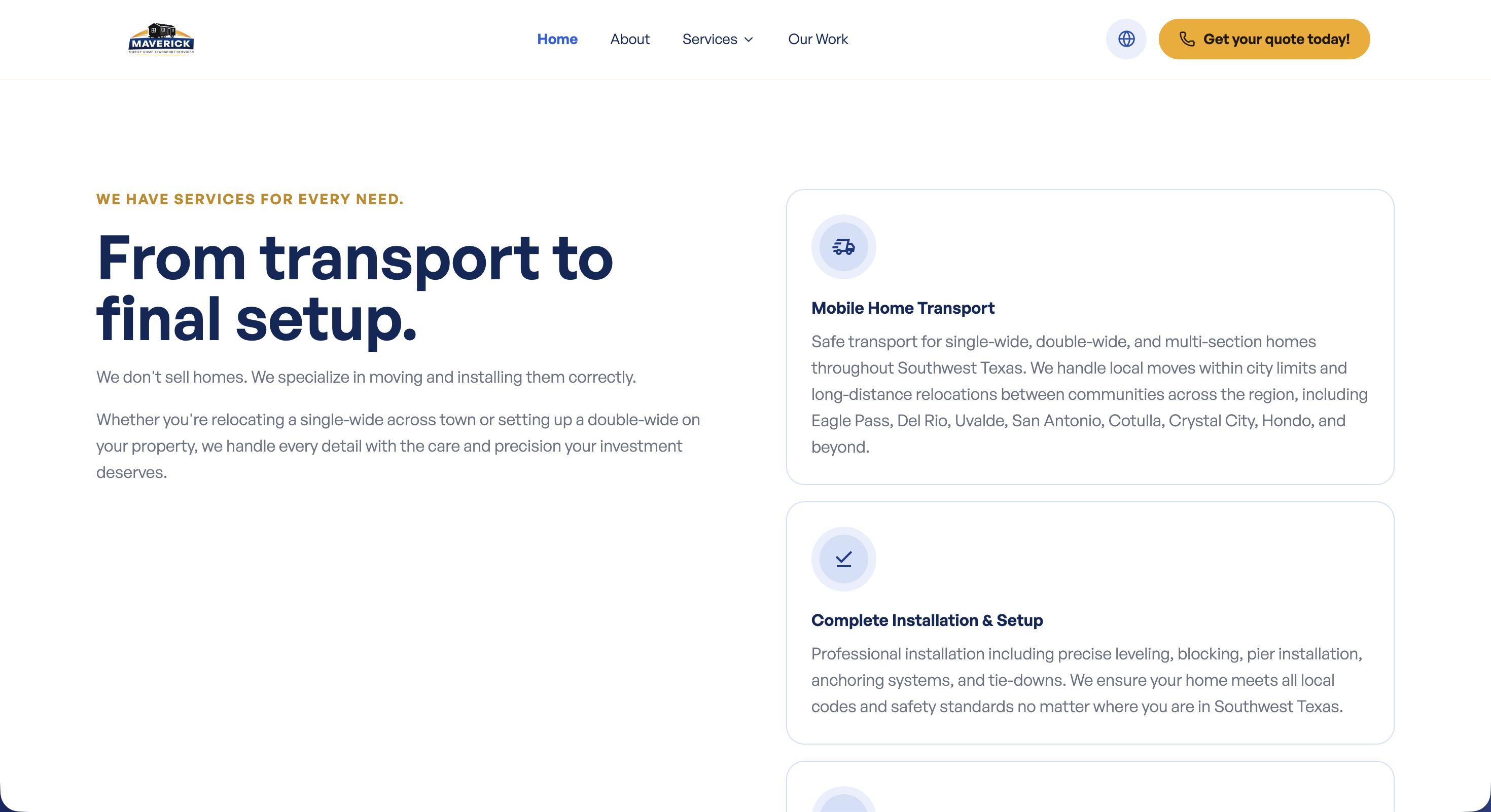
Where to Find It
Section titled “Where to Find It”- Log in to Directus.
- Click Content in the left sidebar.
- Click Pages (English) > Home (for English) or Pages (Spanish) > Home (for Spanish).
- Scroll down to the Services Section fields.
Field Reference
Section titled “Field Reference”| Field | What it does |
|---|---|
| Subtitle | The small uppercase label above the heading (e.g., “What We Do”) |
| Title | The section heading (e.g., “Our Services”) |
| Description | The paragraph of text below the heading |
| Helper Message | A small note displayed below the CTA button (optional, extra info for visitors) |
| Action Button | The call-to-action button linking to your services pages |
Step-by-Step: Editing the Services Section
Section titled “Step-by-Step: Editing the Services Section”- Open the home collection (or home_es for Spanish).
- Scroll down to find the Subtitle, Title, and Description fields.
- Click each field and update the text as needed.
- To update the helper note, click the Helper Message field and type your text.
- Click Save when done.
What Happens If I Leave a Field Empty?
Section titled “What Happens If I Leave a Field Empty?”| Field | If left empty… |
|---|---|
| Subtitle | The small label above the heading won’t appear |
| Title | The section will have no heading |
| Description | No description paragraph will appear |
| Helper Message | No helper note appears below the button; that’s fine |