Hero Section
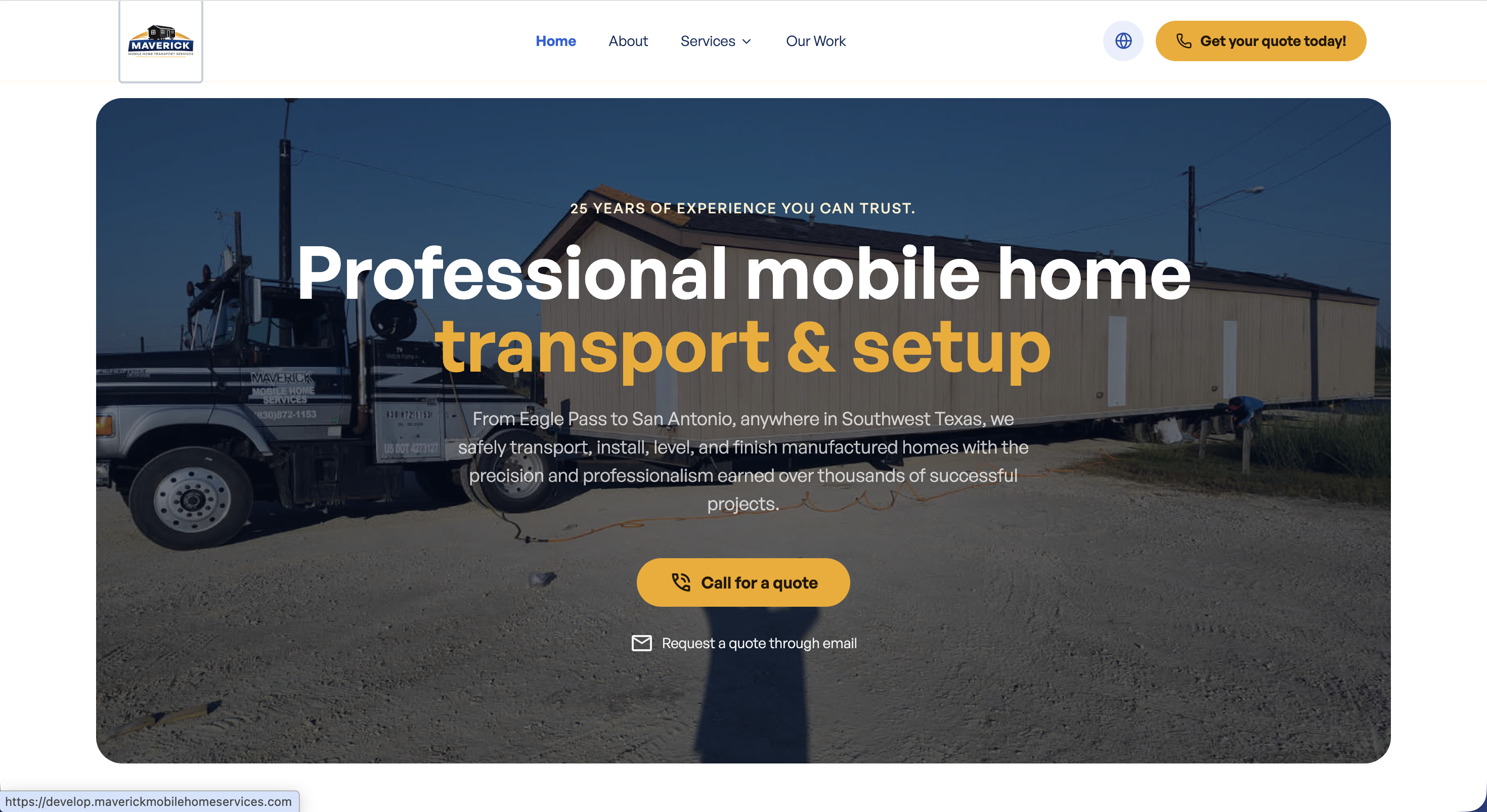
The hero section is the large banner at the very top of your home page, the first thing visitors see. It has a background image, a tagline, a main headline, a short paragraph, and two buttons.
Where to Find It
Section titled “Where to Find It”English home page:
- Log in to Directus.
- Click Content in the left sidebar.
- Click Pages (English) > Home; the item opens directly.
Spanish home page:
- Same steps, but click Pages (Spanish) > Home instead.
Field Reference
Section titled “Field Reference”| Field | What it does |
|---|---|
| Subtitle | The small uppercase tagline that appears above the headline (e.g., “Trusted Mobile Home Services”) |
| Title | The large main headline. Wrap any word in *asterisks* to show it in amber/gold color |
| Description | The short paragraph of text below the headline |
| Hero Image | The background image for the entire hero section |
| Primary Button | The main call-to-action button (e.g., “Get a Free Quote”) |
| Secondary Button | The secondary outline button (e.g., “See Our Work”) |
Step-by-Step: Editing the Hero
Section titled “Step-by-Step: Editing the Hero”- Open the home collection (or home_es for Spanish).
- Click the Subtitle field and type your tagline.
- Click the Title field and type your main headline.
- To highlight any word in amber/gold, wrap it in single asterisks:
*word* - Example:
Expert *Mobile Home* Repairs in Eagle Pass
- To highlight any word in amber/gold, wrap it in single asterisks:
- Click the Description field and type your short paragraph.
- To update the background image, click the Hero Image field, then click Upload a File and choose your image.
- Click Save in the top right corner.
Making Words Appear in Amber (Gold) Color
Section titled “Making Words Appear in Amber (Gold) Color”In the Title field, you can make any word or phrase appear in your brand’s amber/gold color by wrapping it in single asterisks.
| What you type | What visitors see |
|---|---|
Expert *Mobile Home* Services | Expert Mobile Home Services (in amber) |
Serving Eagle Pass *with Pride* | Serving Eagle Pass with Pride (in amber) |
*Quality* You Can Count On | Quality You Can Count On (in amber) |
Changing the Button Text
Section titled “Changing the Button Text”The hero buttons pull their text from the buttons collection. To change what a button says:
- Click Content in the left sidebar.
- Click buttons.
- Find the button you want to change (look at the label to identify it) and click it.
- Click the Translations section.
- Click the English (or Spanish) tab.
- Click the Button Label field and type the new button text.
- Click Save.