Editing a City Page
Each city has its own services page with a customized hero, intro paragraph, and section headings. This guide walks you through editing all of them.
Where to Find It
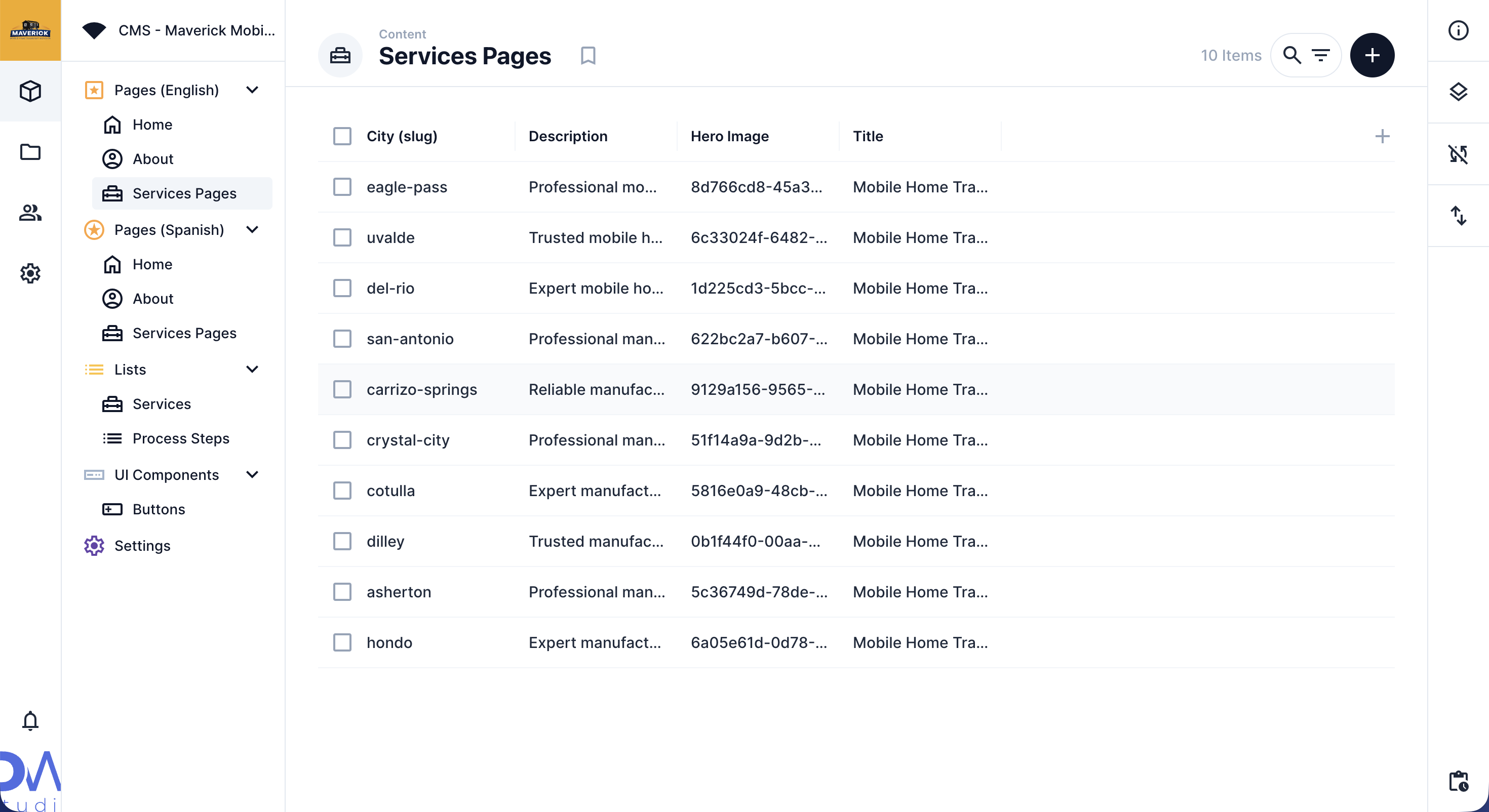
Section titled “Where to Find It”English city pages:
- Log in to Directus.
- Click Content in the left sidebar.
- Click services_page.
- You’ll see a list of cities. Click the city you want to edit.
Spanish city pages:
- Same steps, but click services_page_es instead.
Field Reference
Section titled “Field Reference”| Field | What it does |
|---|---|
| City (slug) | The URL slug for this city (e.g., eagle-pass); do not change this |
| Title | The headline shown in the hero banner for this city |
| Description | The short paragraph in the hero |
| Hero Image | The background image for the hero banner |
| Intro Text | The intro paragraph below the hero, supports markdown formatting |
| Title | The heading above the services list (e.g., “Our Services in Eagle Pass”) |
| Title | The heading above the Local Considerations section |
| Local Considerations List | The local consideration items shown in this section, editable directly inside this city page |
Step-by-Step: Editing a City Page
Section titled “Step-by-Step: Editing a City Page”- Open services_page and click the city you want to edit.
- Update the Title: type the city-specific headline.
- Update the Description: type the short hero paragraph.
- To change the hero background image, click Hero Image and upload a new photo.
- Click the Intro Text field and update the intro paragraph.
- Update the services list Title with the heading for the services list.
- Update the local section Title with the heading for the local section.
- Click Save when done.
Formatting the Intro Text
Section titled “Formatting the Intro Text”The Intro Text field supports markdown. You can use bold text, bullet points, and line breaks to make the content easier to read.
Welcome to Maverick Mobile Home Services in **Eagle Pass**.
We've been serving this community for over 25 years, offering:
- Mobile home leveling and foundation repair- Plumbing and electrical services- Roof repair and replacement
For the full markdown reference, see the Formatting Guide.
The City Slug Field
Section titled “The City Slug Field”Editing Local Considerations Items
Section titled “Editing Local Considerations Items”The Local Considerations items are edited directly inside the city page; you don’t need to go anywhere else.
- Open the city page you want to edit (services_page → click the city).
- Scroll down to the Local Considerations List field.
- Click an existing item to open it and edit its content.
- Inside the item, scroll to the Translations section.
- Click the English tab and update the Title and Description.
- Click the Spanish tab and do the same for Spanish.
- Click Save.
To add a new item: Click the Create New button inside the Local Considerations List field, fill in the translations, and click Save.
To remove an item: Click the item, then click the remove/unlink button next to it.