How to Log In
Your website content is managed through a tool called Directus, your CMS (content management system), the “behind the scenes” area where you update your site.
To make any changes to your website, you start here.
Logging In
Section titled “Logging In”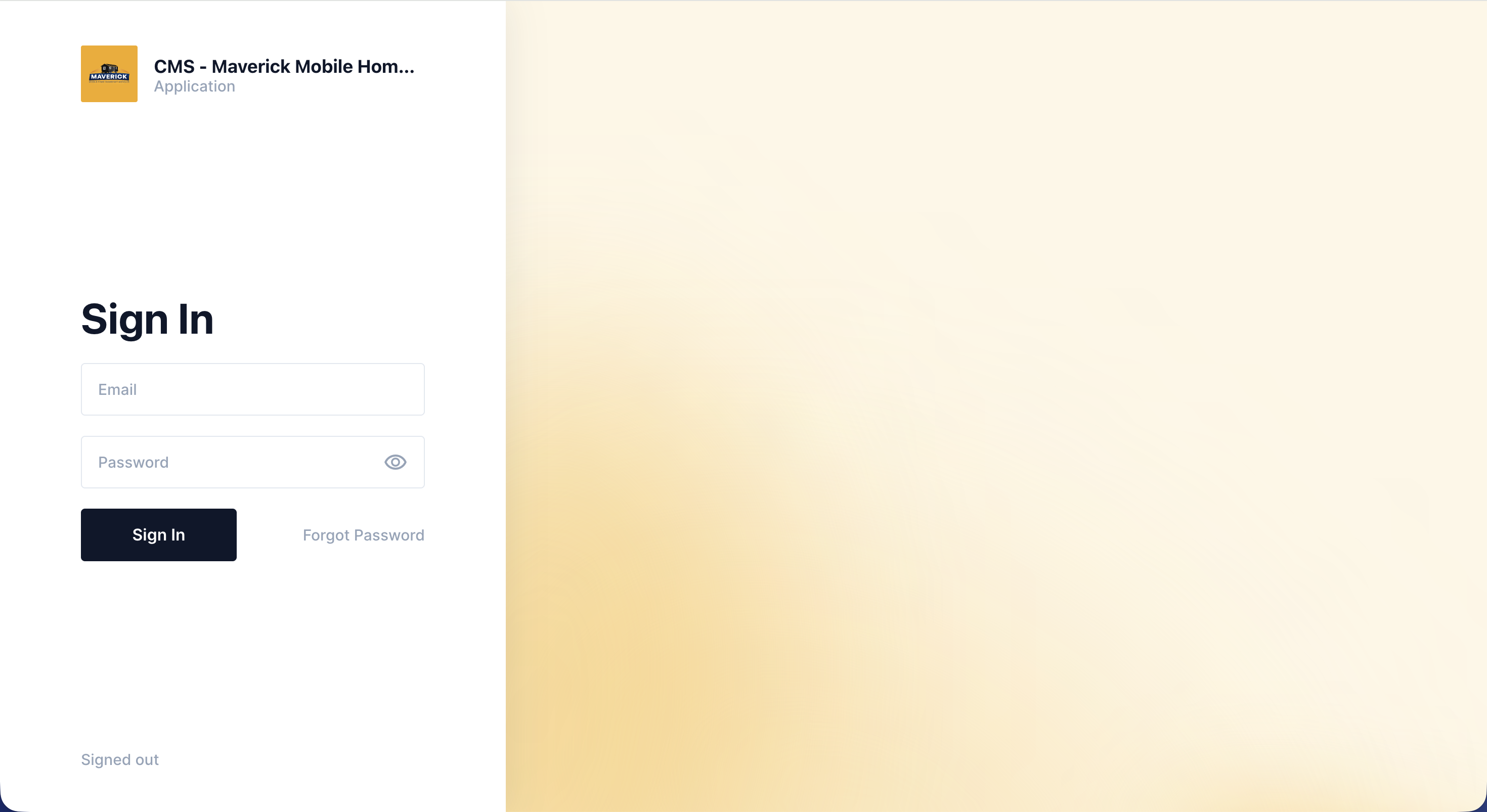
- Open your web browser (Chrome, Safari, Edge, or Firefox).
- Type your Directus login link into the address bar and press Enter.
- Your developer gave you this link when your site launched. It looks something like:
https://cms.yourwebsite.com
- Your developer gave you this link when your site launched. It looks something like:
- Click the Email field and type your email address.
- Click the Password field and type your password.
- Click the Sign In button.
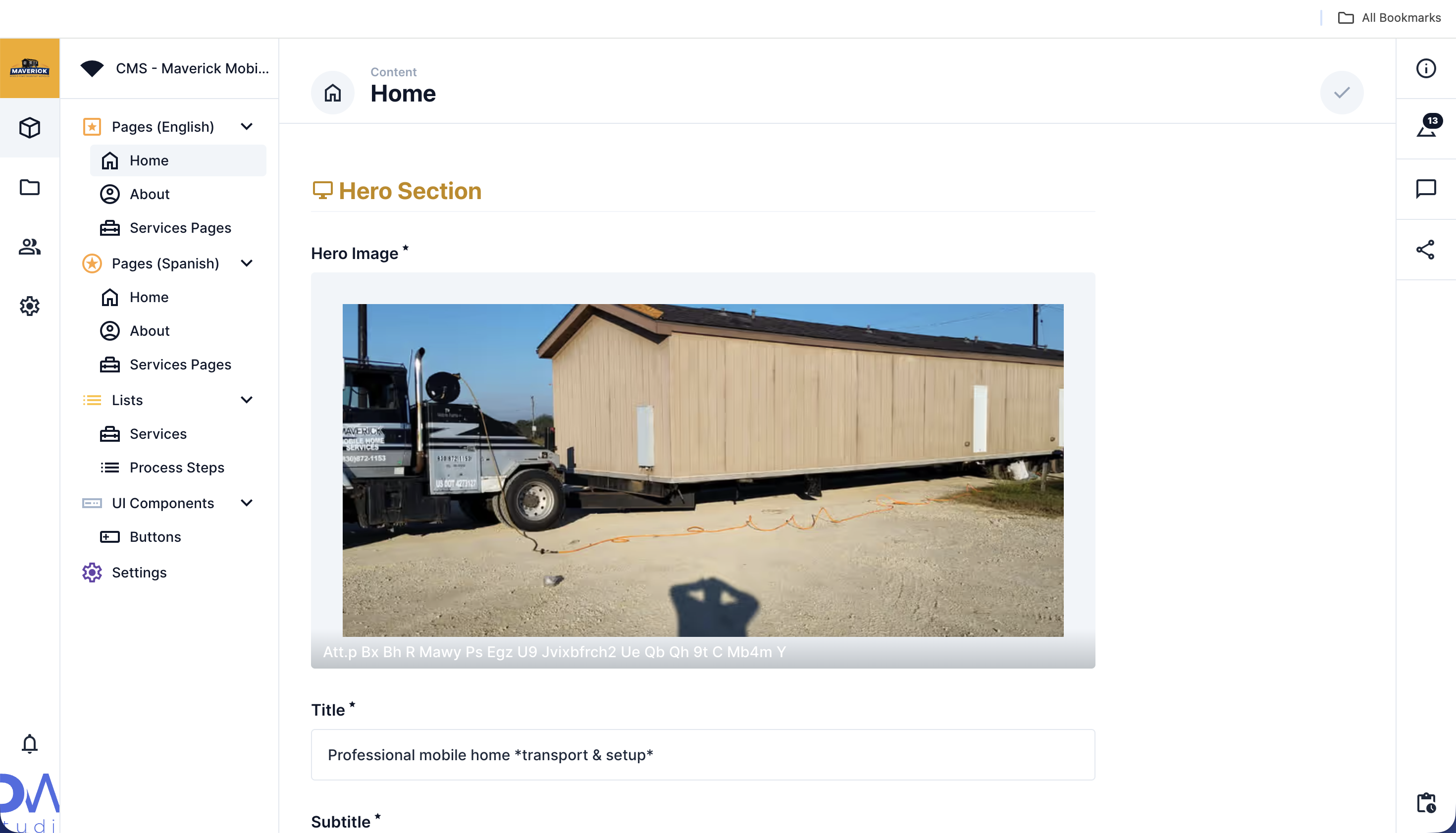
You’ll land on your Directus dashboard, it’s a panel with a menu on the left side.
If You Forget Your Password
Section titled “If You Forget Your Password”- On the login screen, click Forgot Password (it’s below or to the right of the Sign In button).
- Type your email address and click Reset.
- Check your email inbox for a message from Directus.
- Click the link in that email and follow the steps to create a new password.
Staying Logged In
Section titled “Staying Logged In”Directus will keep you logged in for a while, but it may log you out automatically after some time. If you return and see the login screen, just sign in again.