City-Specific Descriptions
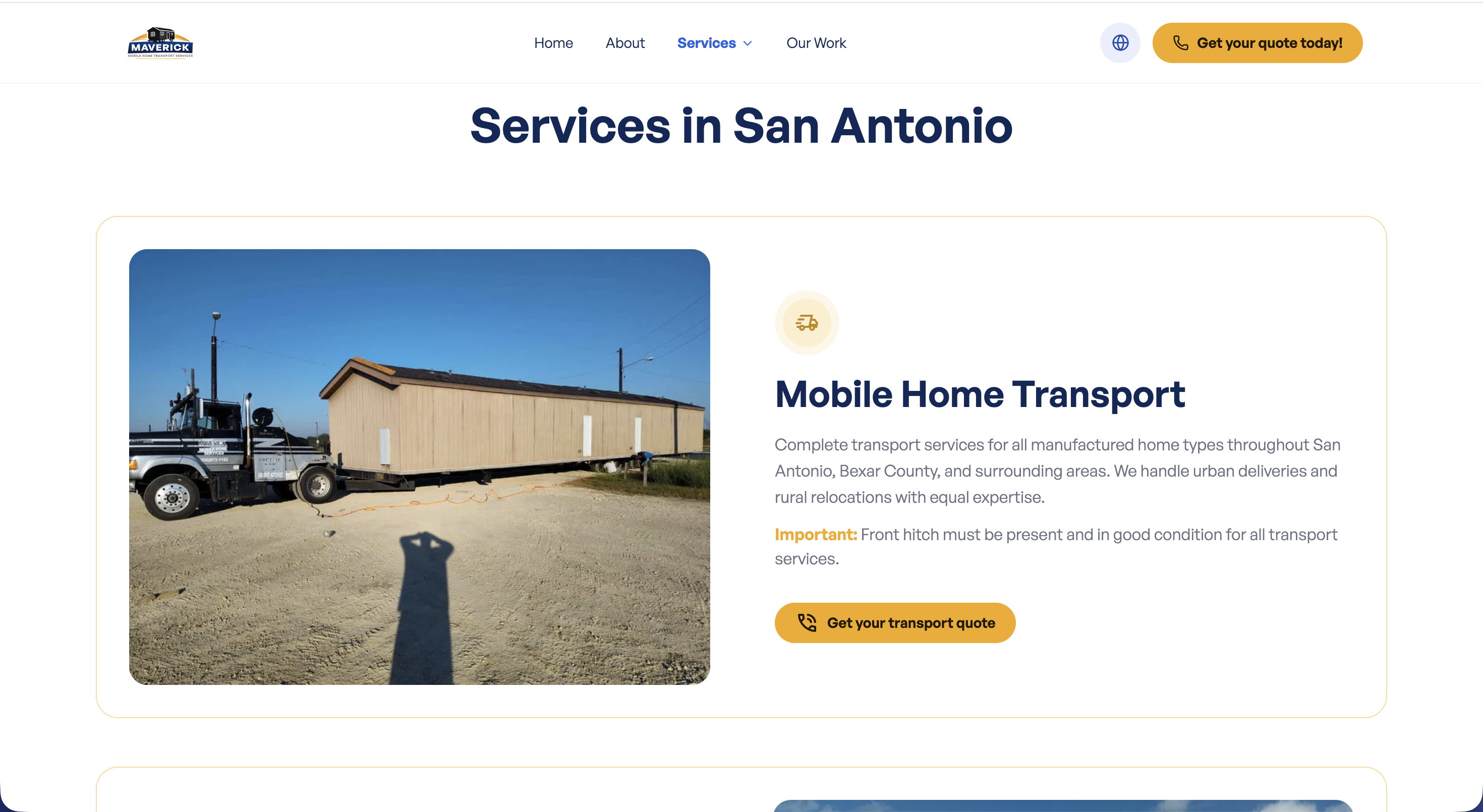
By default, every city page uses the same service descriptions. But if you want a different description for a specific service in a specific city, you can add a city-specific override directly inside that service’s entry.
For example: the description for “Roof Repair” might be slightly different for Eagle Pass vs. Del Rio to reflect local conditions.
Where to Find It
Section titled “Where to Find It”City-specific descriptions are managed from inside the services collection, not from a separate place in the sidebar.
- Log in to Directus.
- Click Content in the left sidebar.
- Click services.
- Click the service you want to customize (e.g., “Roof Repair”).
- Scroll down to the City Descriptions section inside that service entry.
Field Reference
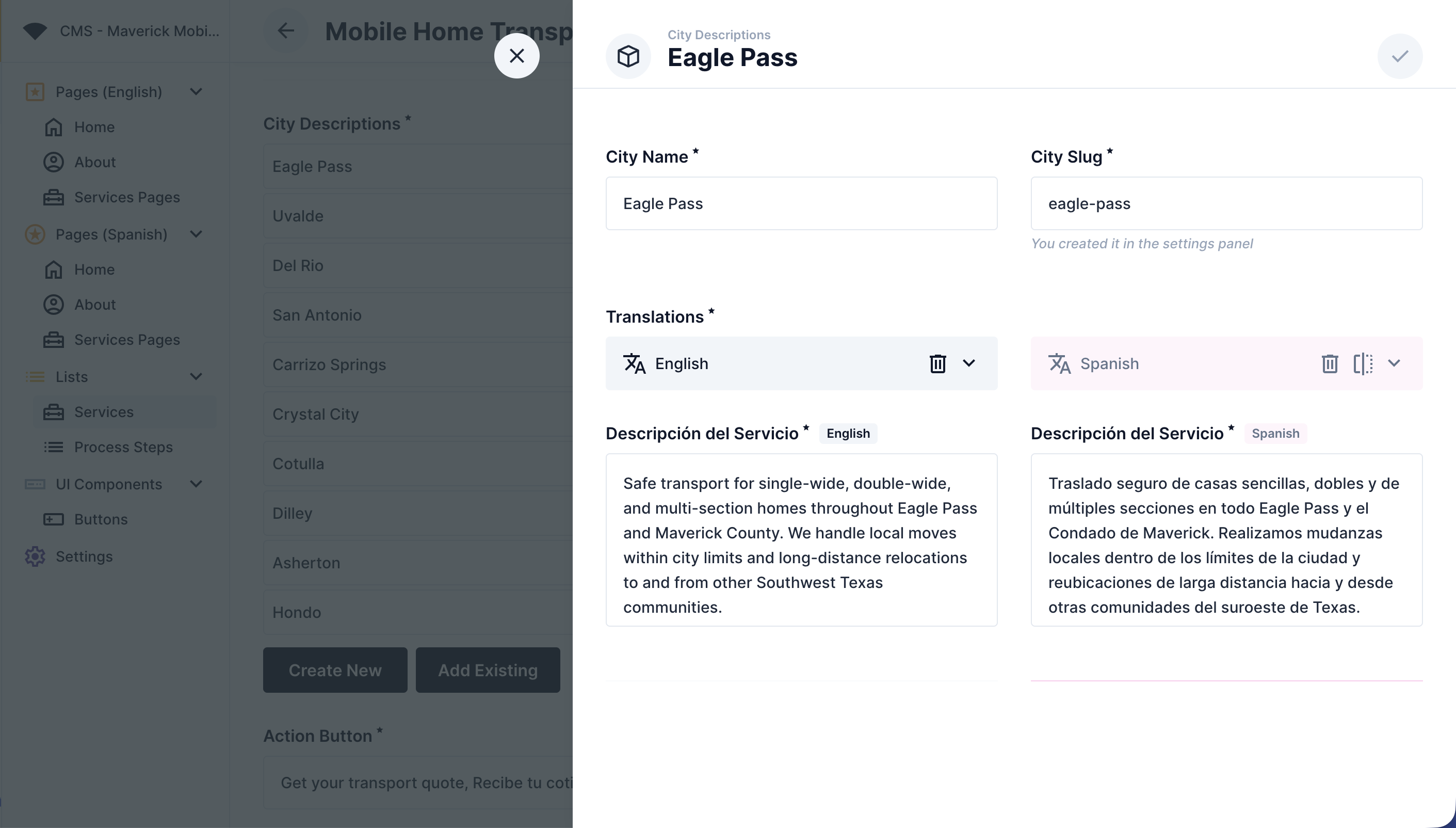
Section titled “Field Reference”| Field | What it does |
|---|---|
| City Name | A label to help you identify this entry (e.g., “Eagle Pass: Roof Repair”) |
| City Slug | The city’s URL slug; must match exactly (e.g., eagle-pass) |
| Service Description | The custom description text for this city (in English or Spanish) |
Step-by-Step: Adding a City-Specific Description
Section titled “Step-by-Step: Adding a City-Specific Description”- Open the service you want to customize (services → click the service).
- Scroll down to the City Descriptions section.
- Click Create New.
- Fill in the City Name field with a label so you can recognize the entry later (e.g., “Eagle Pass”).
- Fill in the City Slug field with the city’s URL slug exactly (e.g.,
eagle-pass). - Scroll to Translations and click the English tab.
- Type your custom description in the Service Description field.
- Click the Spanish tab and add the Spanish version.
- Click Save.
Step-by-Step: Editing an Existing City Description
Section titled “Step-by-Step: Editing an Existing City Description”- Open the service (services → click the service).
- Scroll down to City Descriptions and click the entry you want to update.
- Click into Translations, select the language tab, and update the Service Description field.
- Click Save.
How It Works
Section titled “How It Works”When the website loads a city services page, it checks for a city-specific description first. If one exists for that city + service combination, it uses that. If not, it falls back to the default description set on the service itself.