Process Section
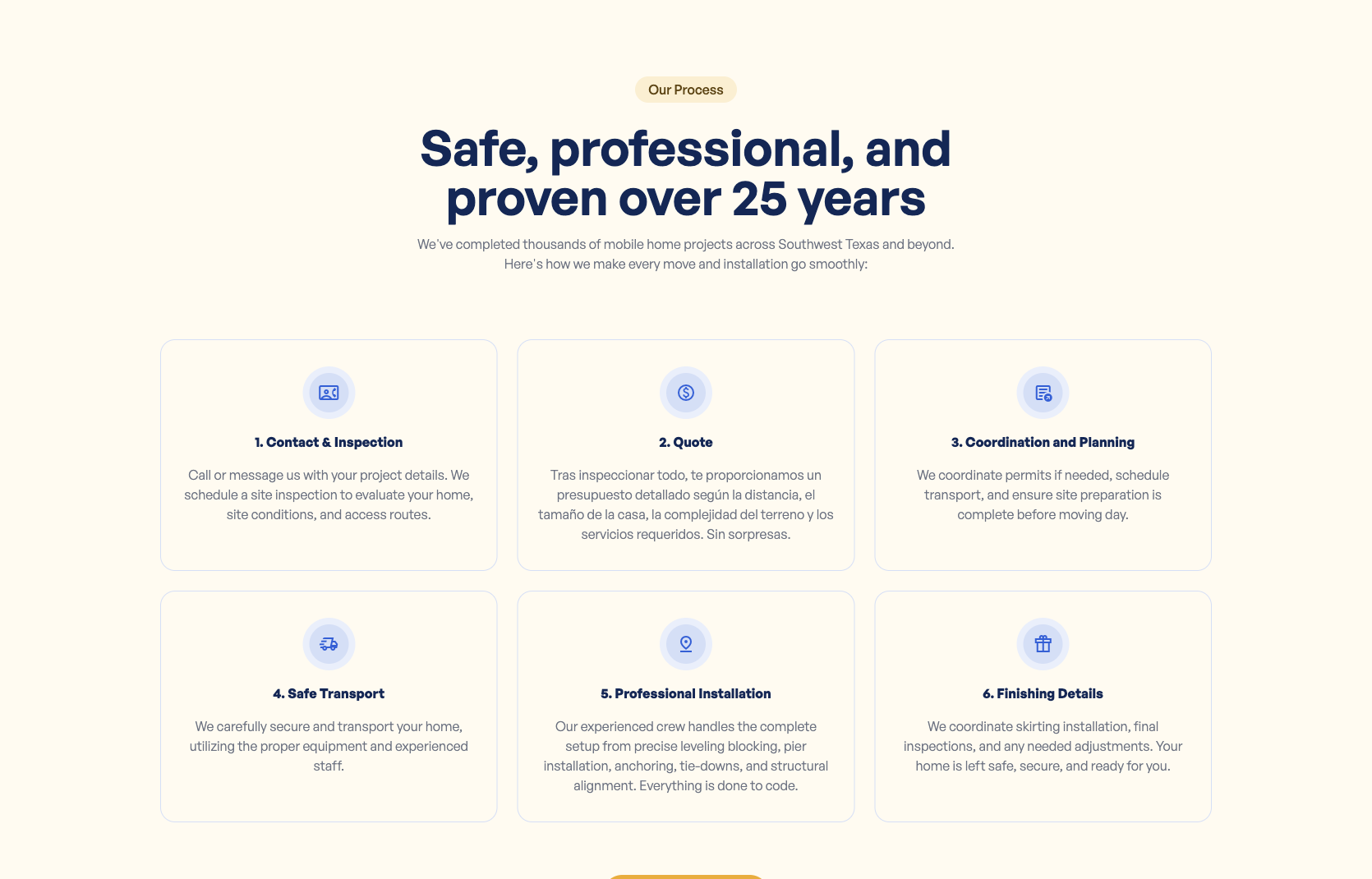
The process section shows visitors how your service works: the step-by-step journey from first contact to completed job. This section has a heading and description that you edit on the home page, plus individual steps that are managed separately.
Where to Find It
Section titled “Where to Find It”Heading and description (home page fields):
- Log in to Directus.
- Click Content in the left sidebar.
- Click Pages (English) > Home (for English) or Pages (Spanish) > Home (for Spanish).
- Scroll down to the Process Section fields.
Individual step cards:
- The steps themselves (icons, titles, descriptions) are managed in the process_steps collection. See the section below.
Field Reference
Section titled “Field Reference”| Field | What it does |
|---|---|
| Subtitle | The small uppercase label above the heading |
| Title | The section heading (e.g., “How It Works”) |
| Description | The paragraph of text below the heading |
| Action Button | The call-to-action button at the bottom of the section |
Step-by-Step: Editing the Process Section Heading
Section titled “Step-by-Step: Editing the Process Section Heading”- Open home (or home_es).
- Click the Subtitle field and update the small label.
- Click the Title field and update the heading.
- Click the Description field and update the paragraph.
- Click Save.
Editing the Individual Step Cards
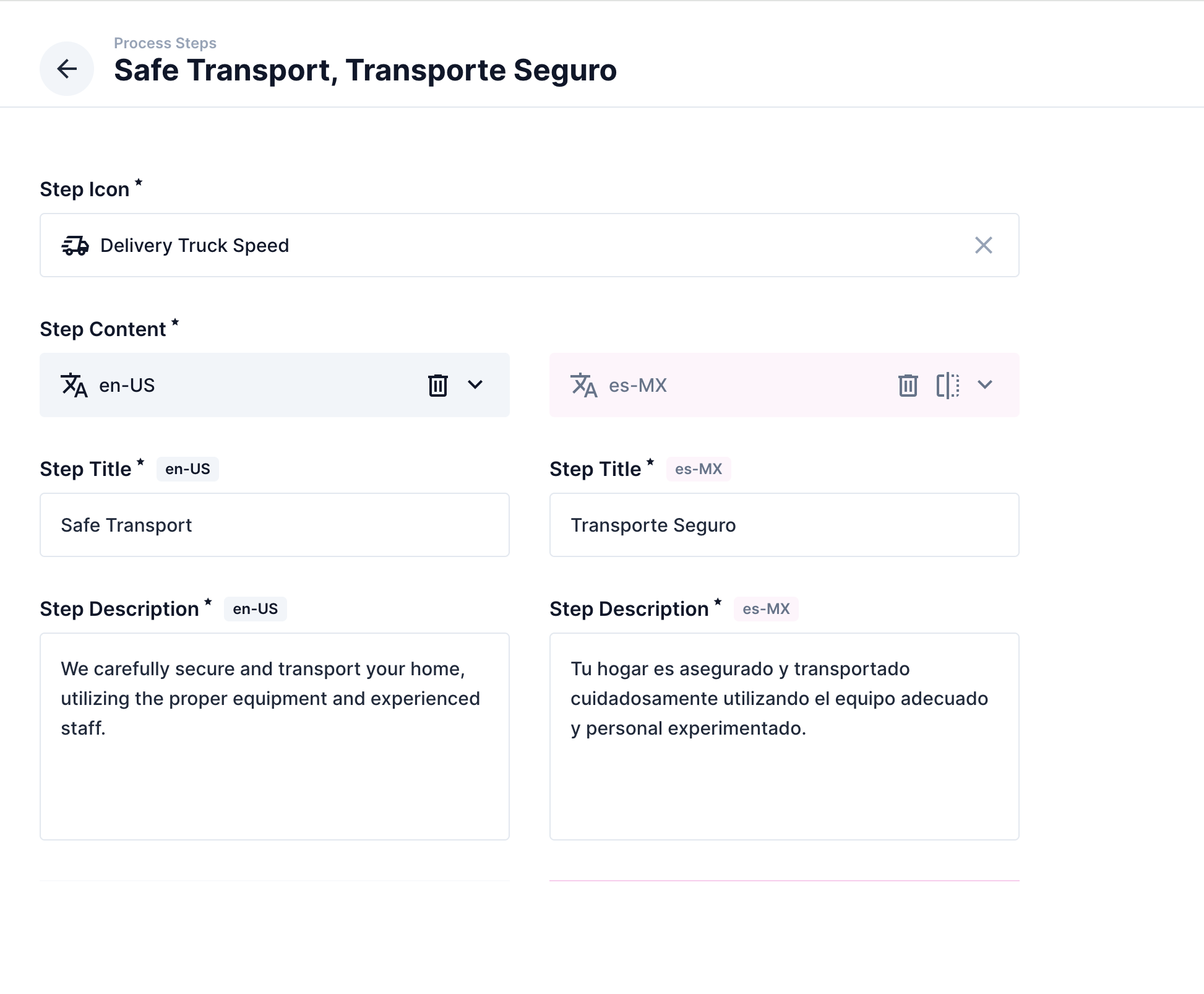
Section titled “Editing the Individual Step Cards”Each step card (icon, title, and description) is managed in the process_steps collection.
- Click Content in the left sidebar.
- Click process_steps.
- You’ll see a list of all steps. Click the step you want to edit.
- Scroll to the Translations section.
- Click the English tab (or Spanish tab).
- Update the Step Title and Step Description fields.
- Click Save.