Navigating Directus
Once you’re logged in, you’ll see the Directus dashboard. Here’s a quick tour so you know where everything is.
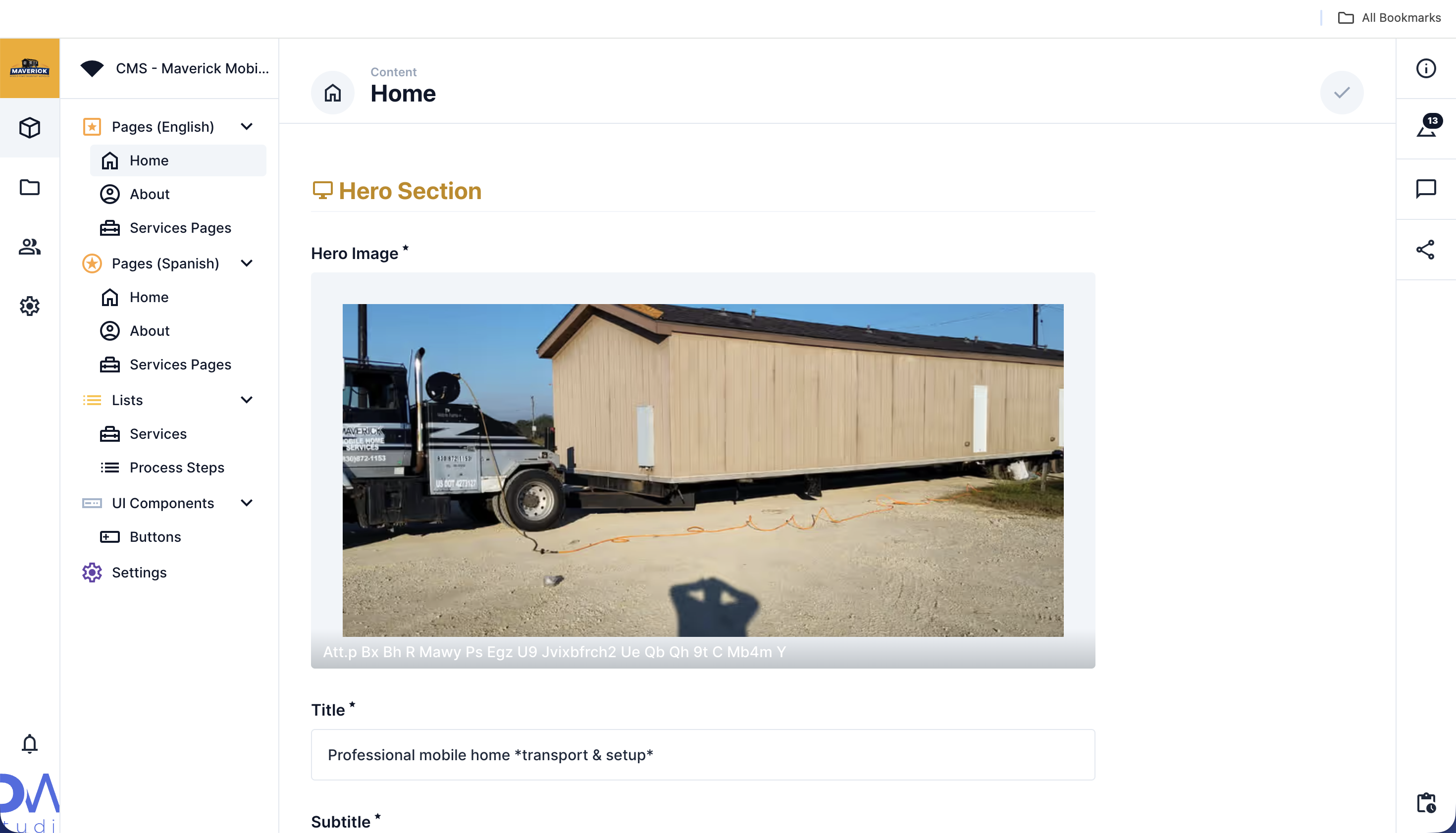
The Left Sidebar
Section titled “The Left Sidebar”The menu on the left is your main navigation. The two areas you’ll use most are:
| Icon | Name | What it’s for |
|---|---|---|
| Cube icon | Content | All your website sections: home page, about page, services, settings, etc. |
| Folder icon | Files | Your media library, where all uploaded photos and videos live |
Everything else (settings, users, etc.) is for your developer and you won’t need to touch it.
Finding a Collection
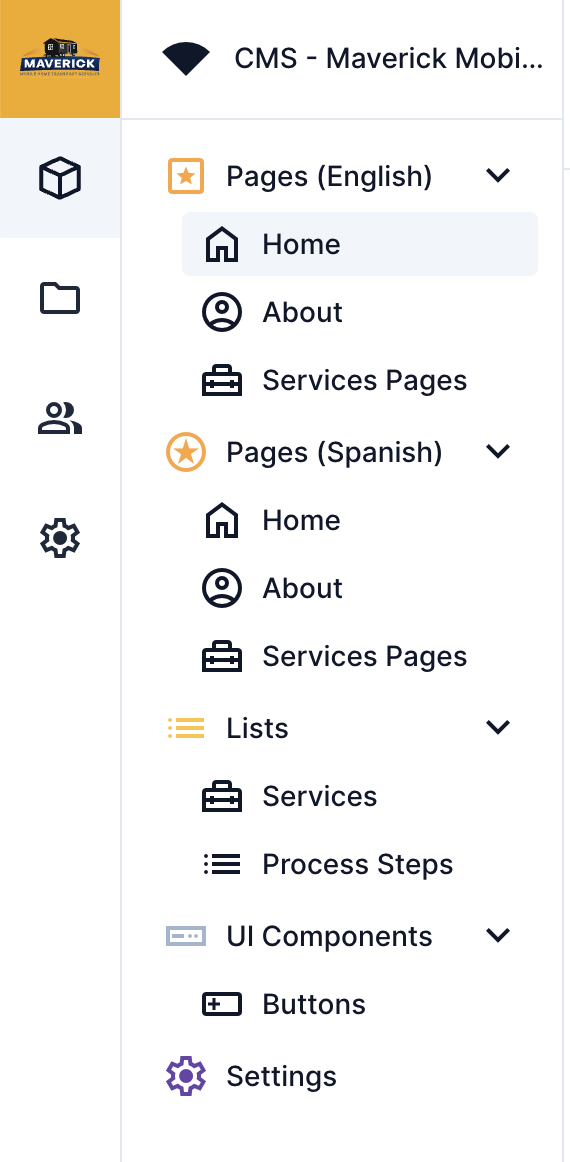
Section titled “Finding a Collection”A collection is a section of your website. Think of it like a folder. Each collection holds content for one part of your site. We have structured your collections in folders by pages (home, about, etc), lists (services, process steps) and UI Elements (buttons)
To open a collection:
- Click the Content icon in the left sidebar.
- You’ll see a list of all your collections.
- Click the name of the collection you want to edit.
Singletons vs. Lists
Section titled “Singletons vs. Lists”Some collections have only one item, these are called singletons. When you click on a singleton, it opens the item directly instead of showing a list first.
Examples of singletons (only one item each):
home: your English home pagehome_es: your Spanish home pageabout: your English about pagesettings: global site settings
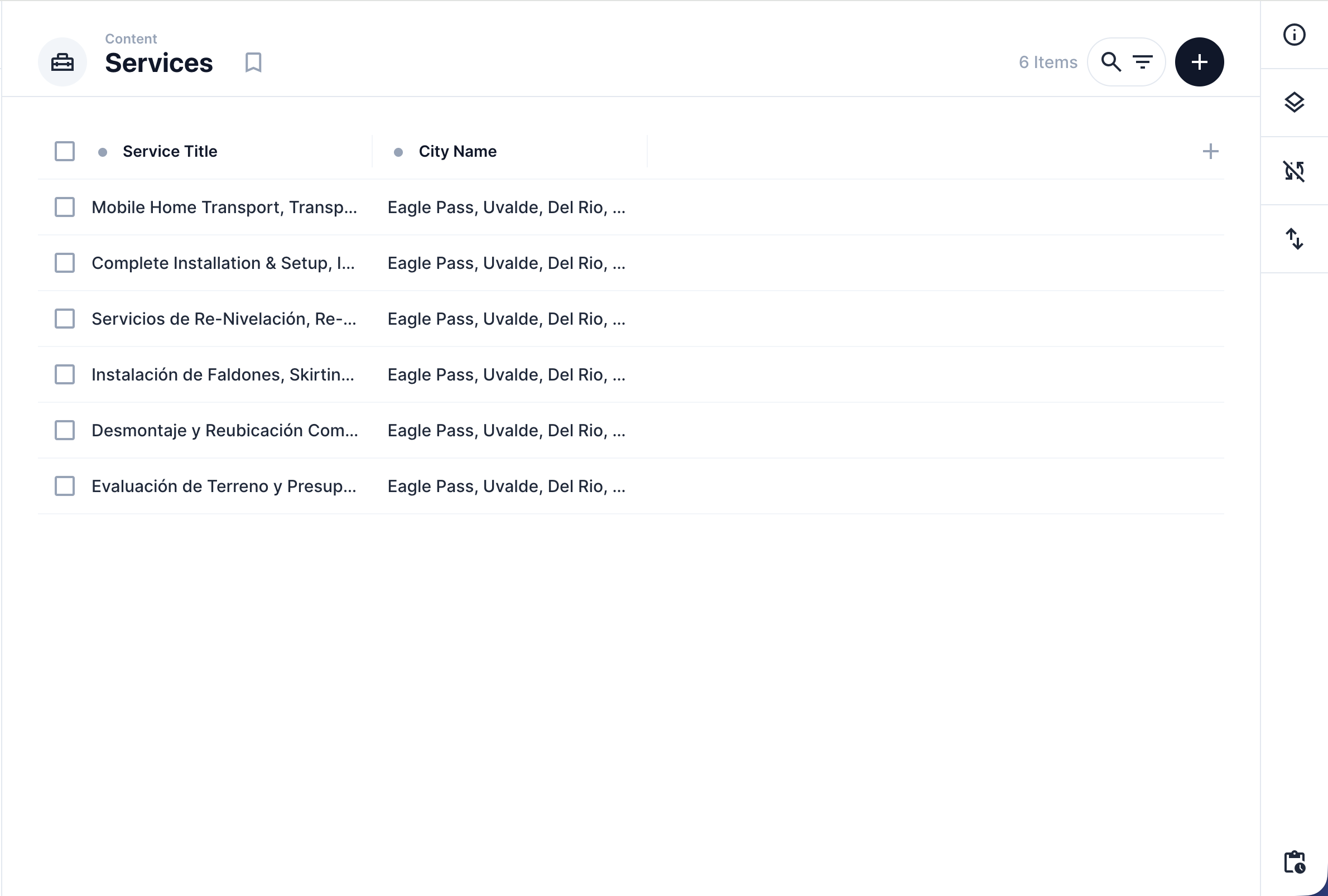
Other collections have multiple items. For example, services has one item per service you offer, and services_page has one item per city.
Opening an Item
Section titled “Opening an Item”After you click a collection, you’ll see a list of entries (items) inside it.
- Click on any row to open that item.
- You’ll see all the editable fields for that item.
- Make your changes, then click Save (the blue button in the top right corner).
Translations (English vs. Spanish)
Section titled “Translations (English vs. Spanish)”Many fields on your site exist in both English and Spanish. Inside Directus, you’ll find a Translations section within certain items. It has two tabs: one for English (en-US) and one for Spanish (es-MX).
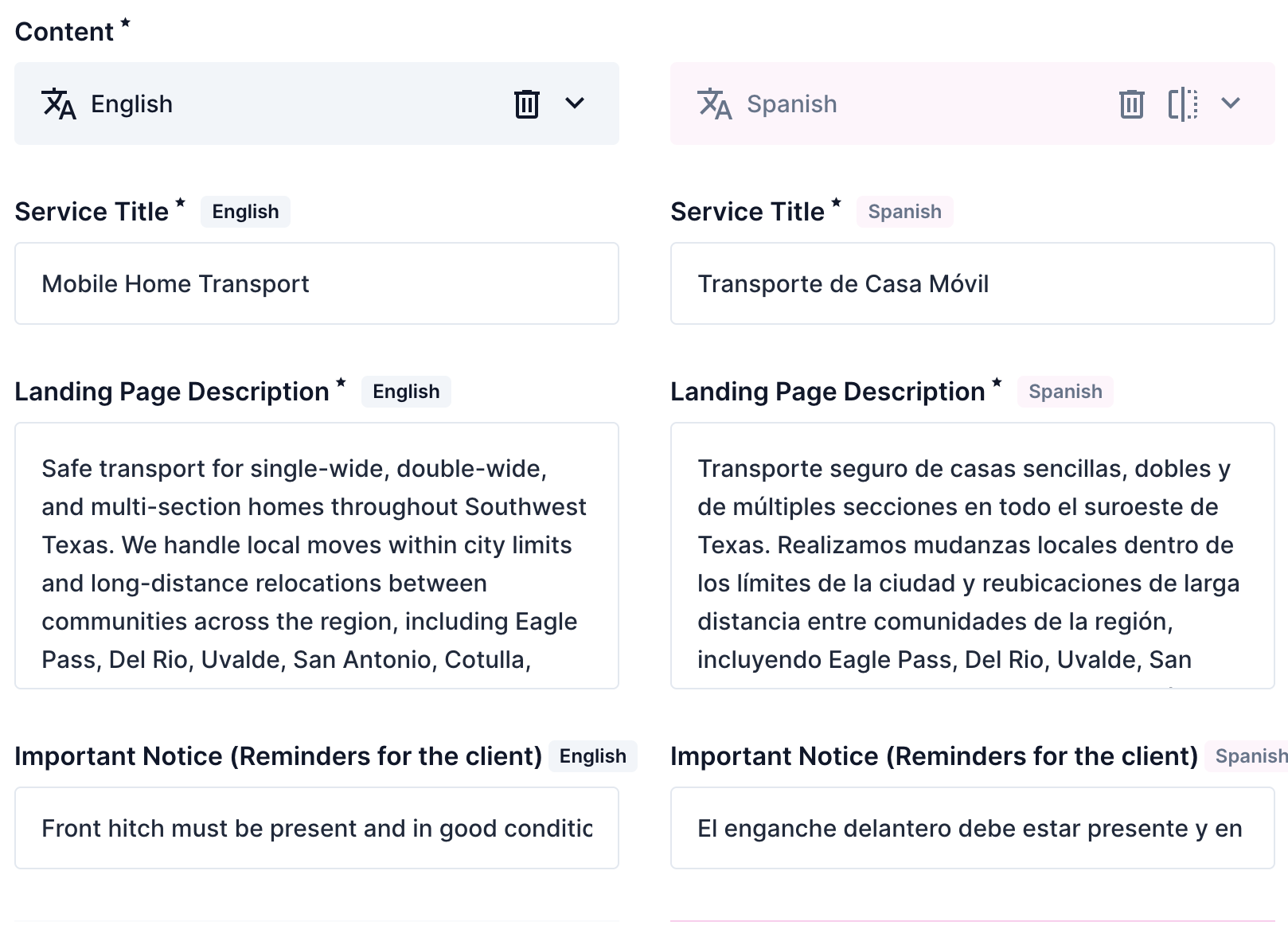
Always check you’re on the right language tab before typing and saving.
The Files Area (Media Library)
Section titled “The Files Area (Media Library)”All your photos and videos are stored in the Files area.
- Click the Files icon in the left sidebar.
- You’ll see all uploaded files.
- To find your gallery images, look for the folder named “gallery”.
You’ll use this area to upload new photos and videos to the Our Work page. See Uploading Photos for step-by-step instructions.